![Audere_Logo_White_RGB_TM.png]](https://support.audere.com/hs-fs/hubfs/Audere_Logo_White_RGB_TM.png?height=32&name=Audere_Logo_White_RGB_TM.png)
Follow Steps 1 and 2 to personalize your Display settings.
Step 1: Open Display Settings
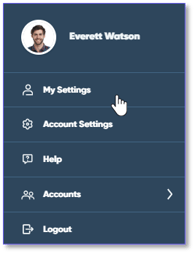
- Select your Profile icon in the upper-right corner of the page, and then select My Settings from the drop-down menu to open the My Settings page.
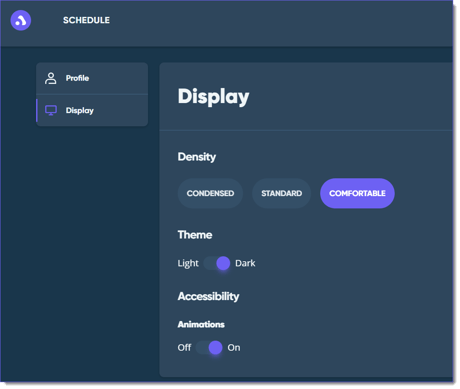
- Select Display from the side menu.
Step 2: Personalize Your Display Settings
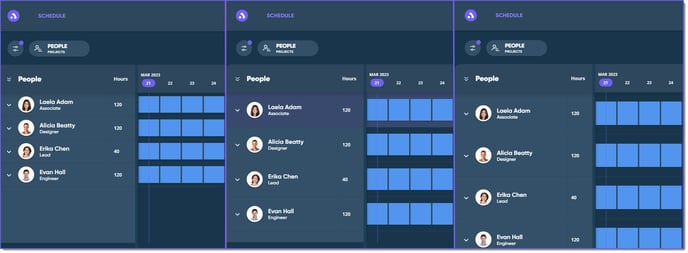
Density: Controls how much white space is around your rows and columns on the Schedule.
- Select Condensed (least spacing), Standard (average spacing) or Comfortable (more spacing).
- By default, your schedule displays in Standard density.
- By default, your schedule displays in Standard density.
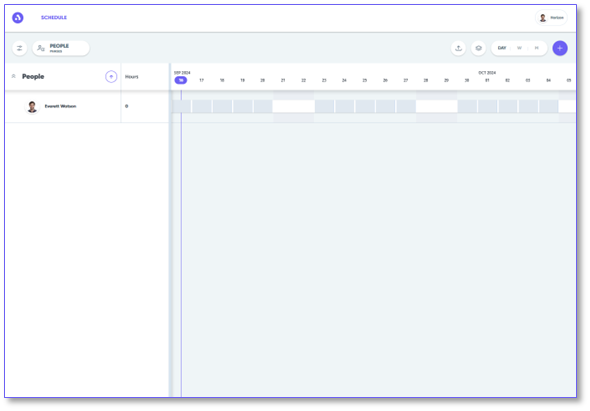
Theme: Determines whether Audere displays in Light or Dark mode.
- Toggle the Theme bar to select Light or Dark mode.
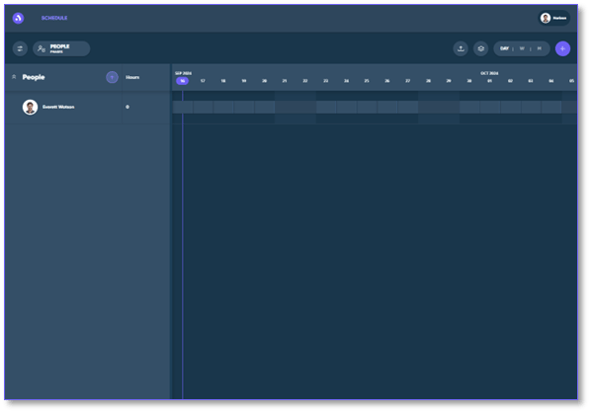
Accessibility: Helps Audere stay within the Web Content Accessibility Guidelines, so any animations that start automatically can be disabled.
- Toggle the Animations bar On / Off to disable or re-enable automatic movement according to your preference.
See Also:
Adding a Picture to Your Profile
Verifying and Updating Payments